


Add Text to Image Online
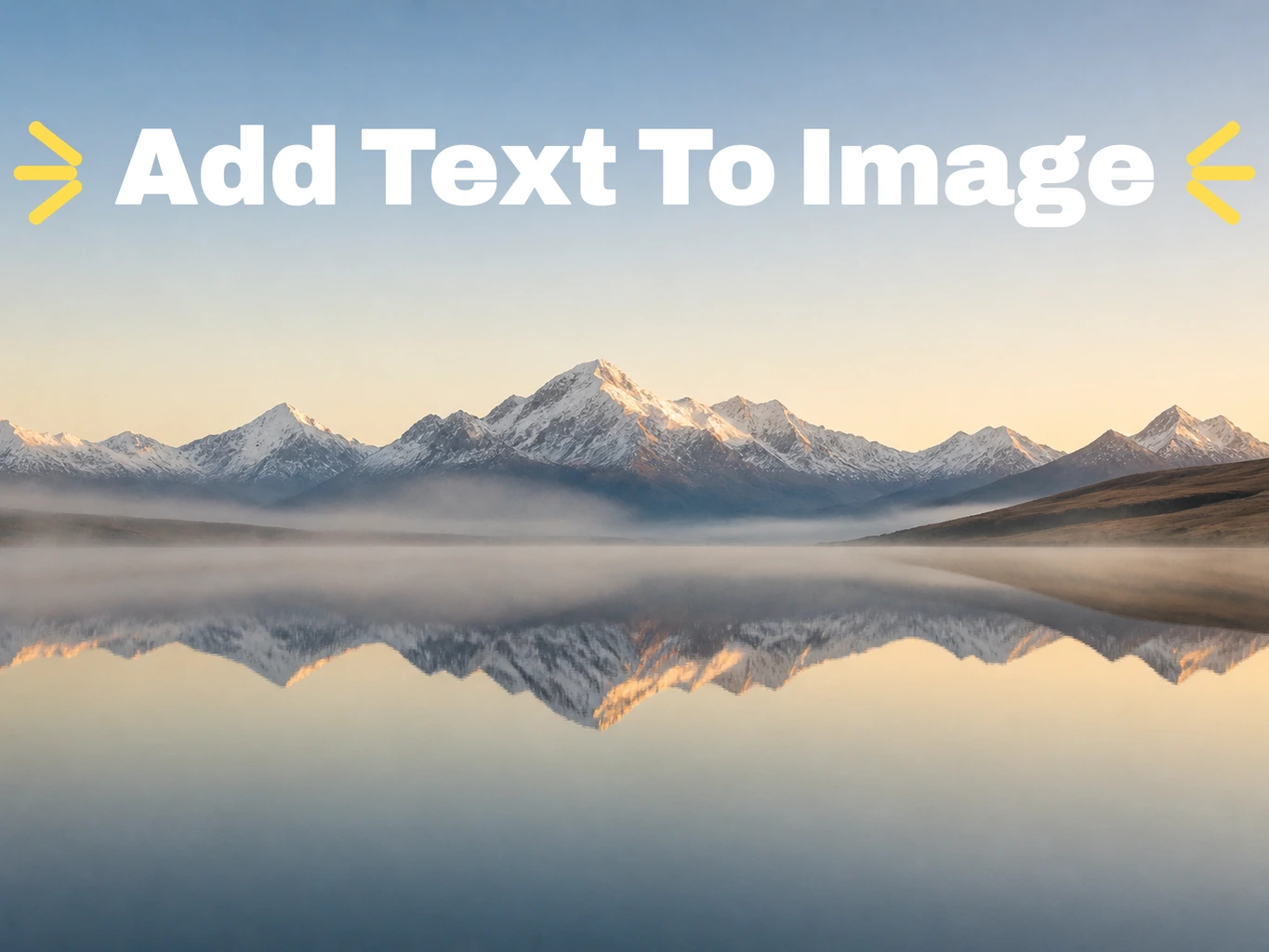
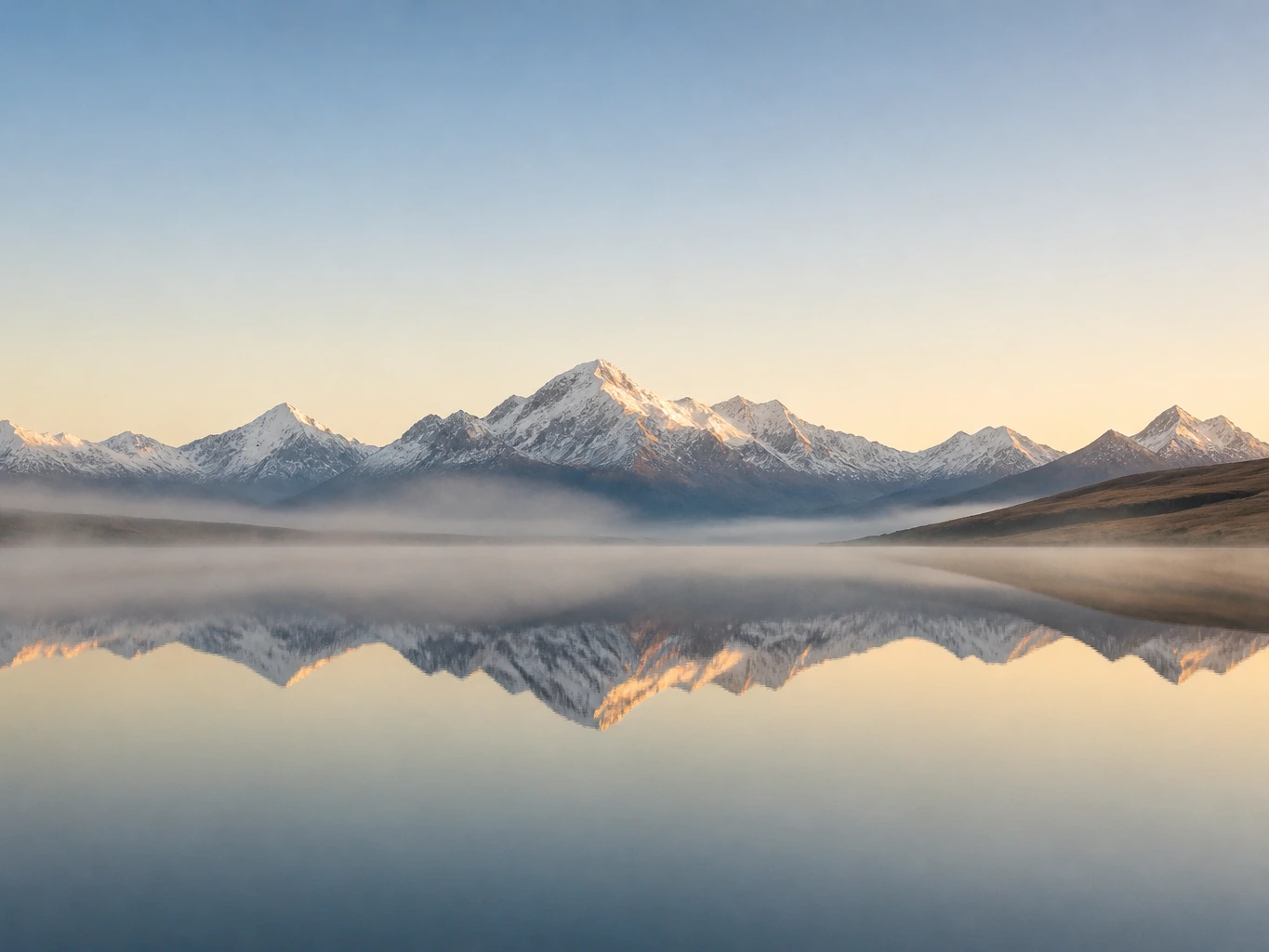
Example image after text editingExample image before text editingBeforeAfter
Example images

Add Text to Image Online for Free

You can add text to a photo in the browser without installing anything. Upload a picture, type the line you want, and place it where it belongs: a headline at the top, a price in the corner, a caption along the bottom. The whole job takes about a minute, and it stays free however many photos you bring.

Add Text Now
A tablet propped on a cafe table showing a coastal sunset photo with the word LISBON across the sky

What the Text on Photo Editor Lets You Change

Write text on image exactly where the line should sit

Pick the spot on the picture, then type. The words land where you put them instead of in a fixed corner, and you can shift them again once you see how the whole frame balances. Most of the work here is deciding where the line belongs, not fighting a settings panel. Pictext stays focused on words inside pictures, and when the words you need already exist in the photo, the image to text converter pulls them out as editable copy instead.

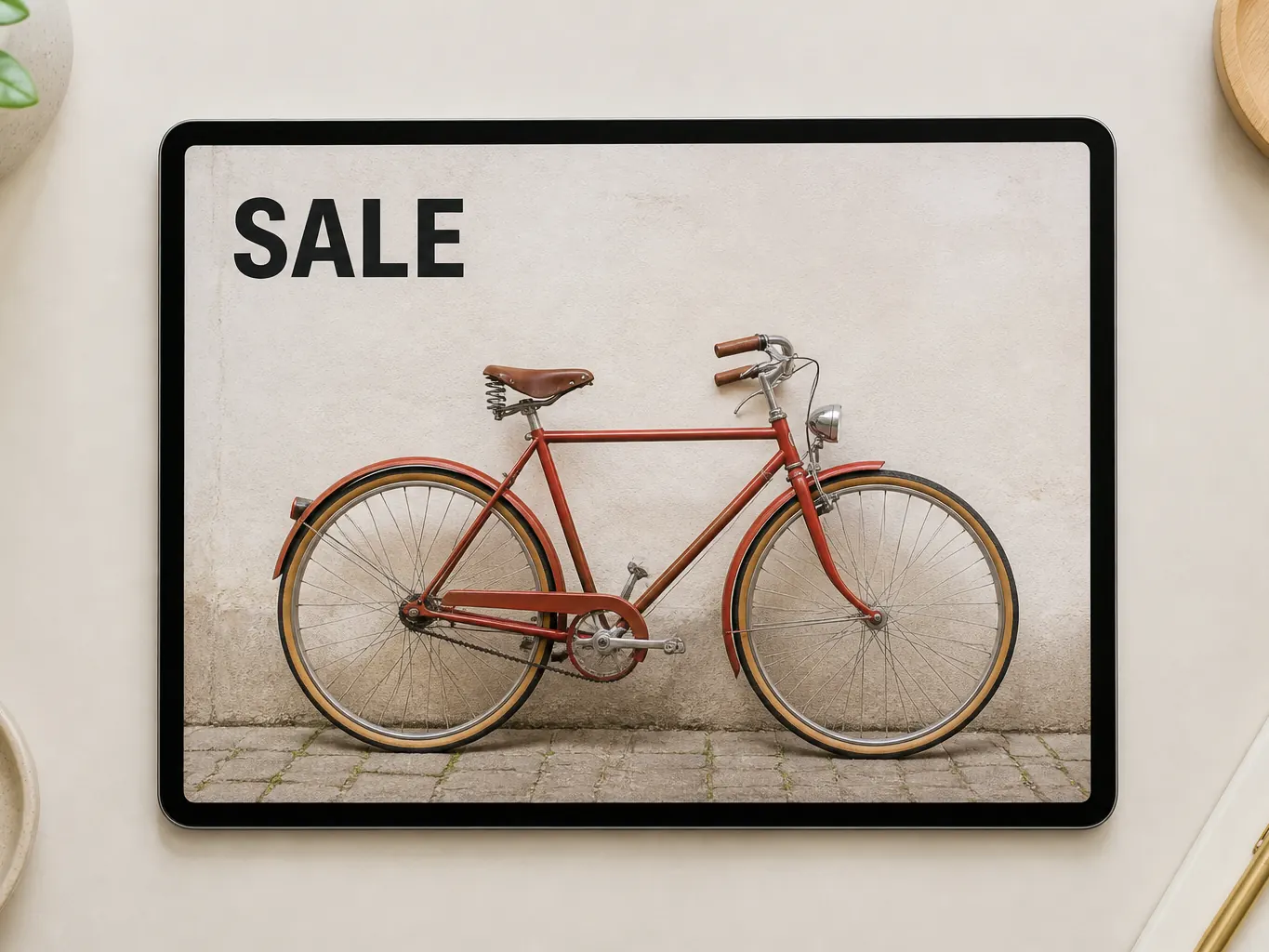
A tablet on a desk showing a photo of a red bicycle with the word SALE in the top corner

Set the size, colour, and opacity so the words stay readable

A pale sky and a dark shopfront need different treatment. Change the size of the type, pick a colour that separates from whatever sits behind it, and turn the opacity down when a solid line feels too heavy over a face or a texture. A set of fonts is there to choose from as well, so the same sentence can read as a label, a caption, or a headline. Take the extra minute here: a line nobody can read has no effect, however good it looks.

The word MISO set large in white on a photo of a golden retriever

Add a second line without losing the first

Put a headline and a smaller subline on the same photo, or a price next to a product name. Each line keeps its own size and colour, so one can be loud and the other quiet. Nothing merges, nothing gets flattened, and you can still go back and change the wording on either one.

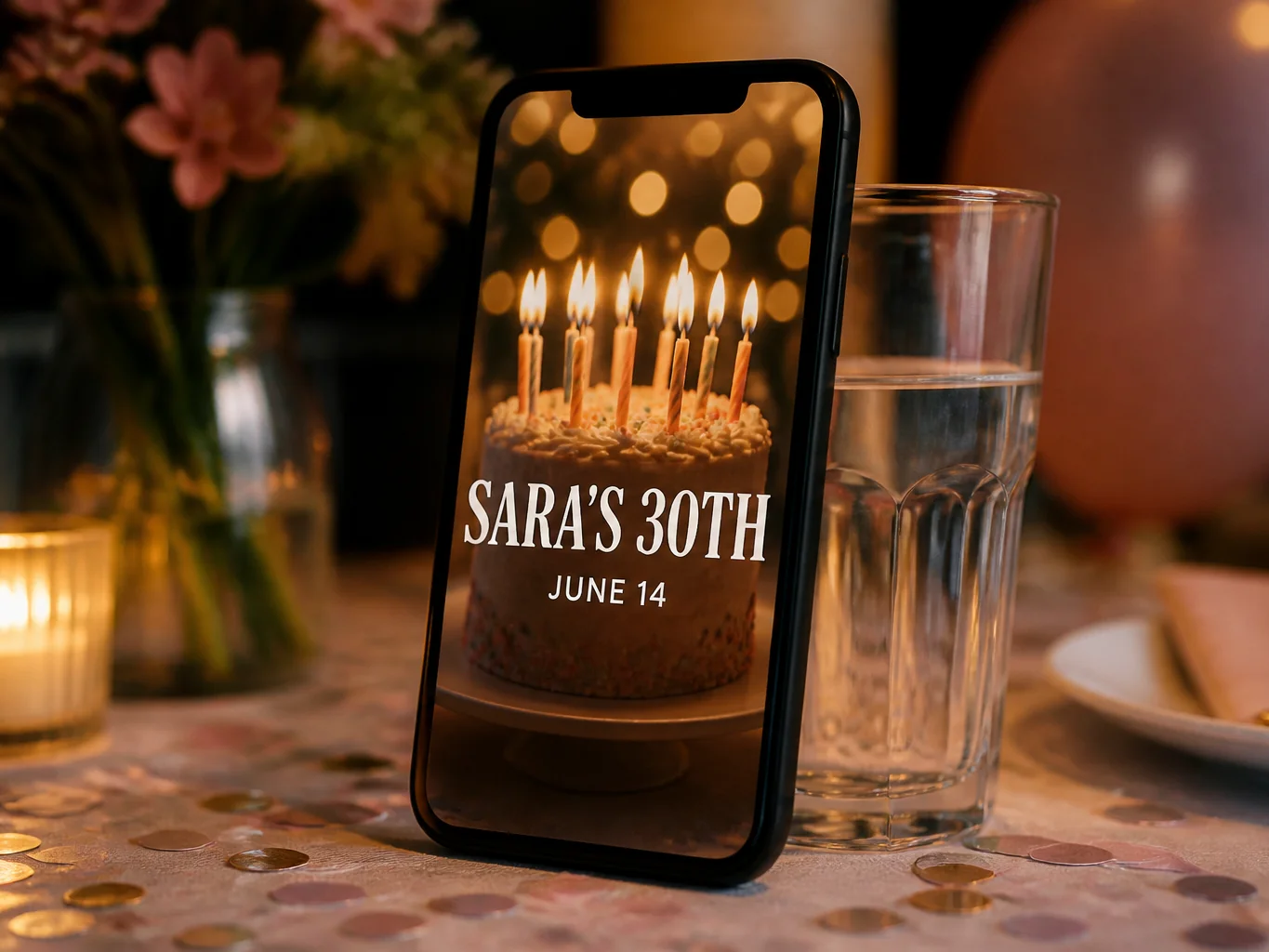
A phone against a glass showing a photo with a separate line of small white text

Check the whole picture before you download

Preview the finished image at full size rather than judging it in a small window. What you see in the preview is the file you get, so there is no second surprise when it opens on a phone or goes to print.

A lake and mountain photo with the word ALPS selected inside a thin lavender bounding box with round handles

How to Add Text to Image Online in Three Steps

Step 01

Drop the picture in

Upload a JPG, PNG, or WebP file from your device. Everything runs in the browser, so there is nothing to install and no account to create. Screenshots that need existing wording changed rather than a new line added belong in the screenshot editor.
Step 02

Type the line and place it

This is the only step that needs a decision. Write the line in the tone your audience expects, then check it at the size the picture will actually be seen.

Step 03

Download the finished picture

Preview the result, then save the image to your device. The file arrives ready to post, print, or send, with no extra export step and no watermark added on top of your work.

Photo Text for the Jobs People Actually Do

Marketplace and product listings

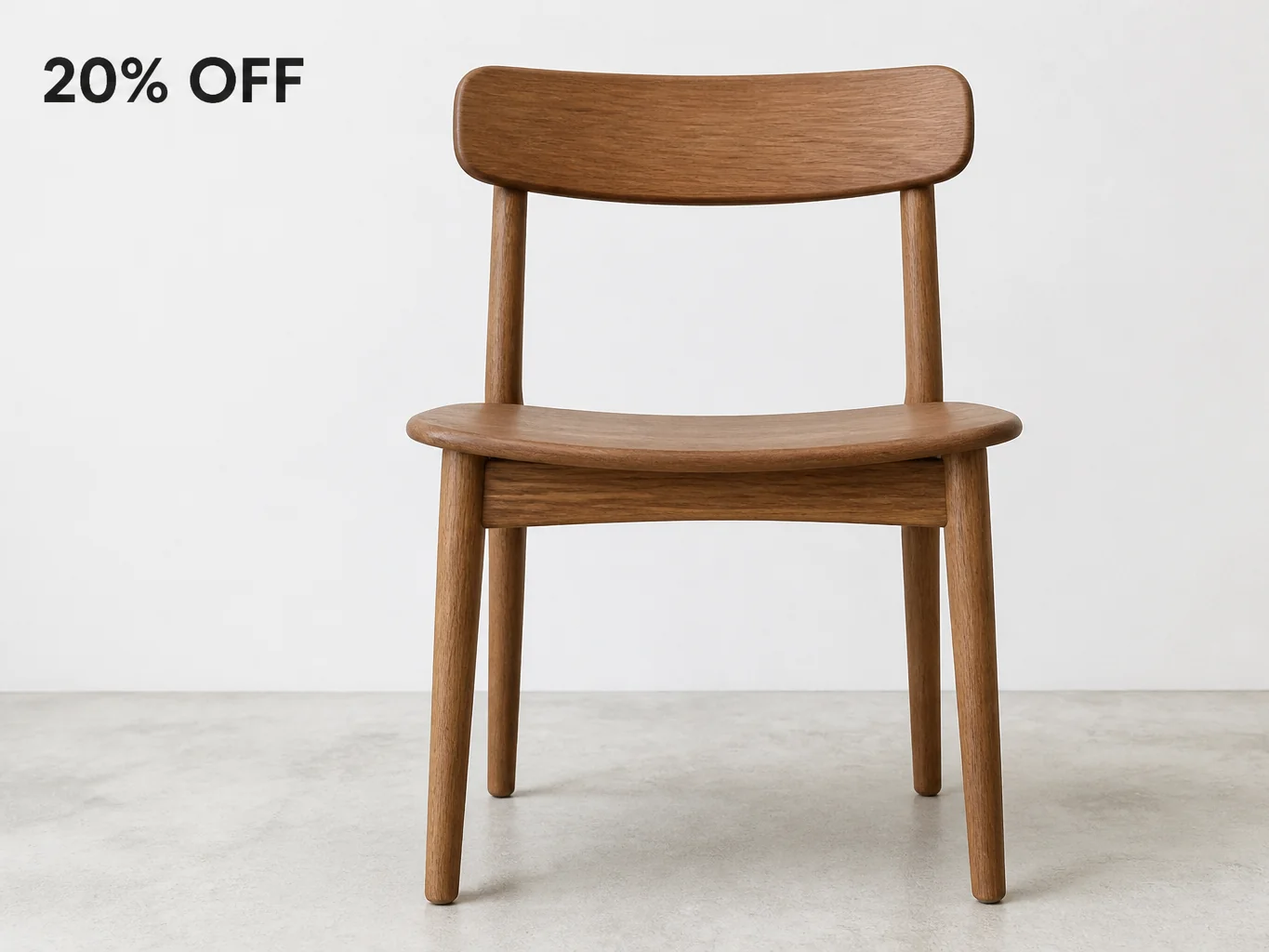
A seller photographing a chair does not need a design suite. They need "20% OFF" in the corner and the dimensions underneath. Adding the line straight to the photo keeps the listing consistent across platforms and saves a trip through a second tool. If an old price is already baked into the picture, clear it first with the remove text from image tool, then add the new figure.

A photo of a wooden chair labelled 20% OFF for a resale listing

Event posters and flyers

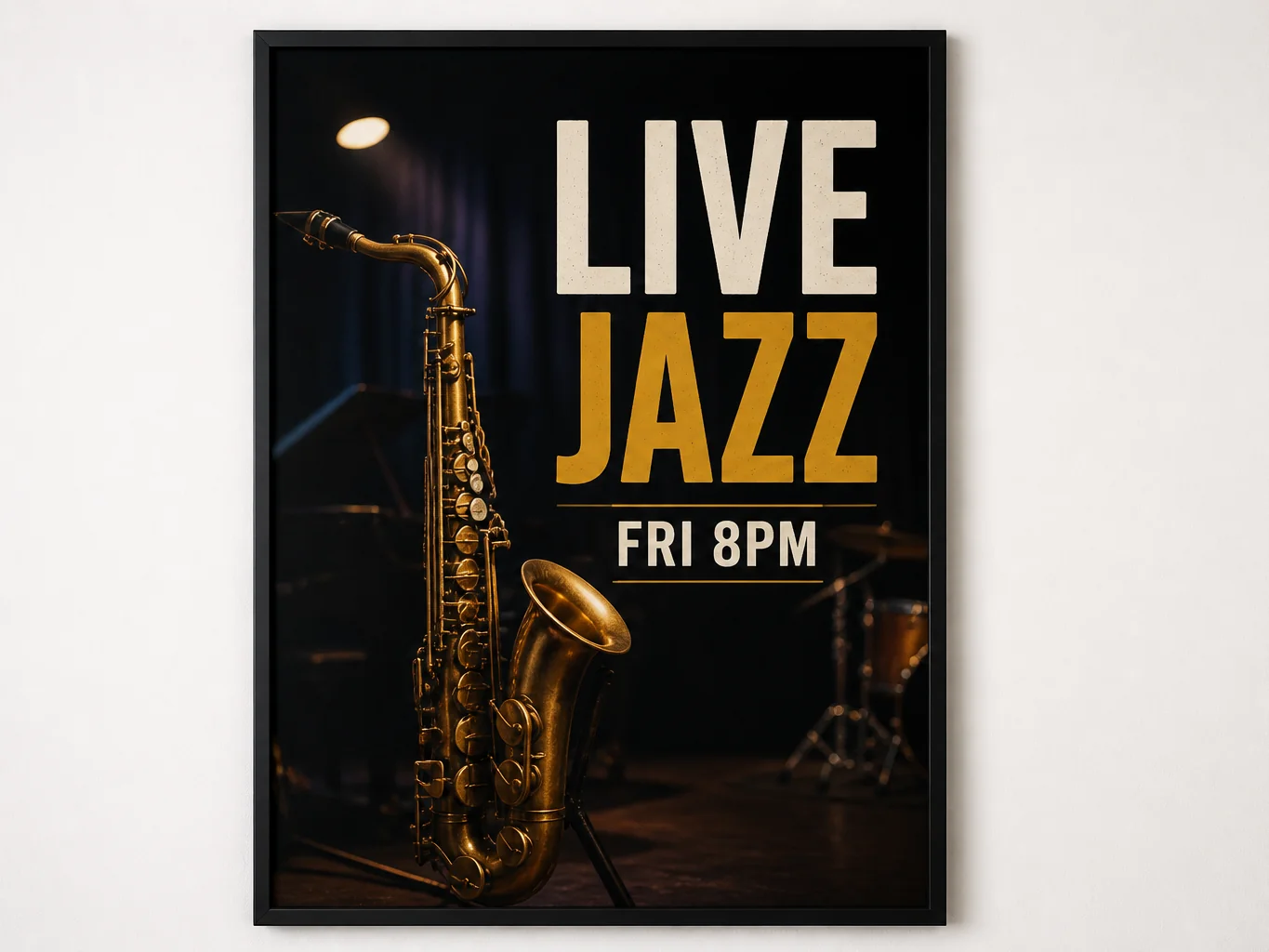
Dates move and venues change. Put the new time on last month's poster instead of rebuilding the layout from scratch, and the announcement can go out the same afternoon. The rest of the design stays exactly as it was approved, which is usually the point.

A poster on a white wall with OPEN printed under a photograph of a storefront

Social posts and story graphics

A quote, a place name, or a one-line joke turns a plain photo into something worth posting. Short lines read better than paragraphs on a phone screen, and most of these images are seen on a phone. Keep the line to a few words and let the picture carry the rest.

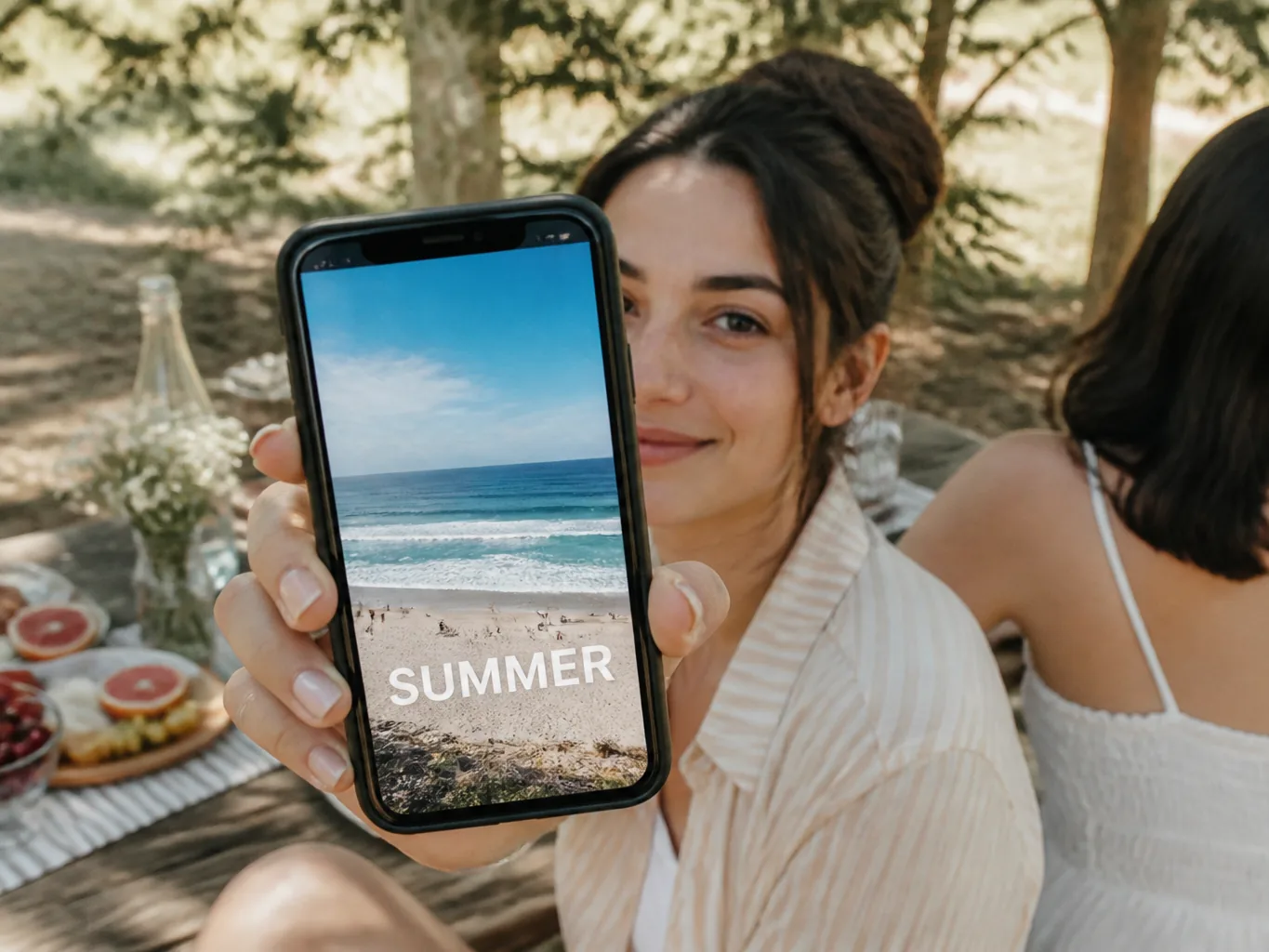
A phone screen showing a beach photo with SUMMER typed across the sand

Travel and personal photos

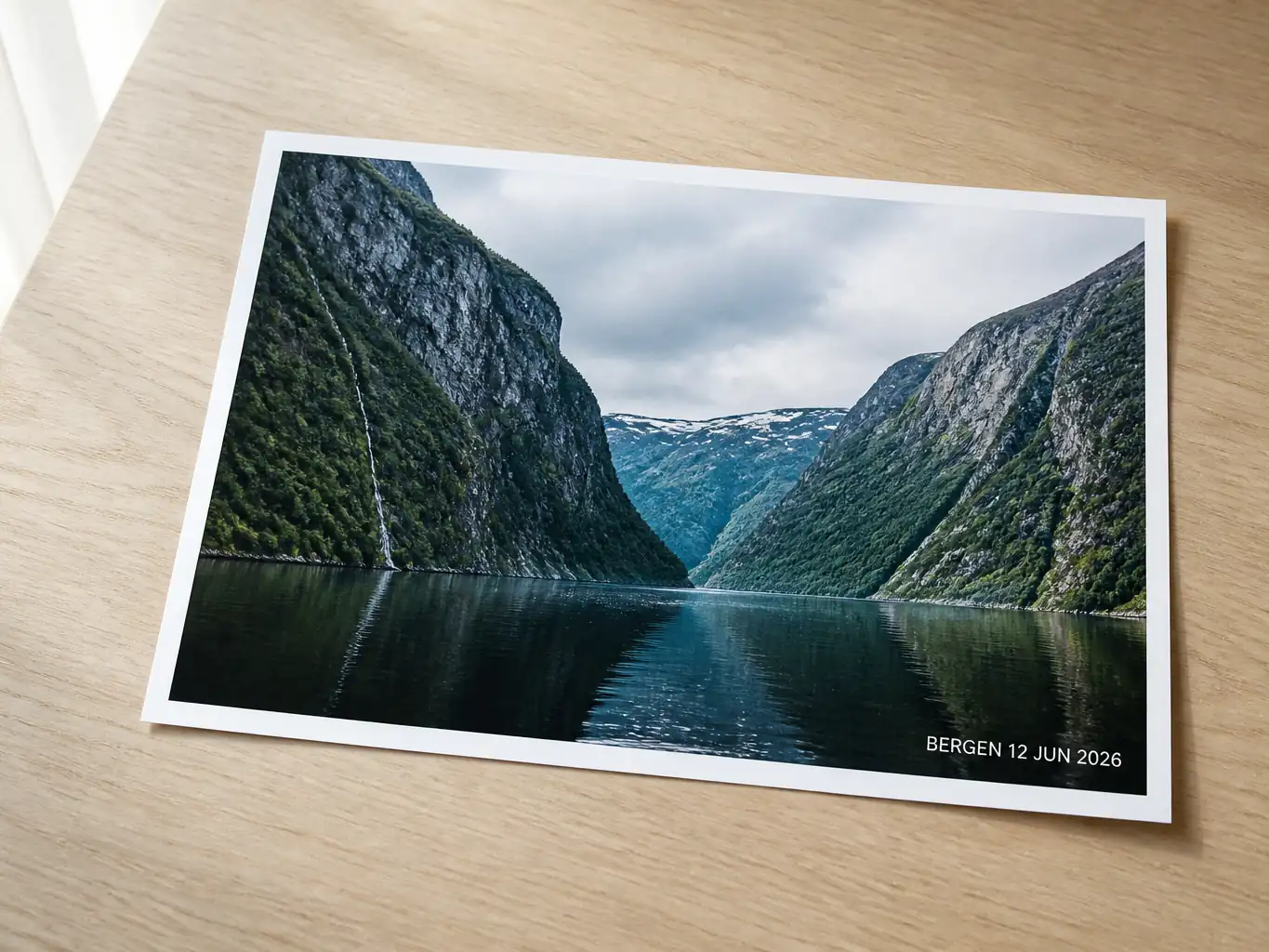
Add the place and the date to a picture from a trip, and it becomes something you can print or send to family. Text on photo online does not have to mean marketing material; a name and a date are enough to turn a snapshot into a keepsake.

A photo print on a wooden table showing a Norwegian fjord, captioned BERGEN 12 JUN 2026 in the corner

Why Pictext Works as a Photo Text Tool

Built for words, not for layers

Pictext is an image text editor, not a general design canvas. There is no layer panel to learn and no template gallery to scroll through. The tool asks for a picture and a line, which is the entire job most people came to do, and it stops there instead of adding options nobody asked for.

No install, no account

Open the page, upload, finish, close the tab. Nothing is added to your desktop and no password is created along the way. If you only need one line on one photo, that is the whole relationship you have to have with the tool.

Free for everyone, with no credits to count

Pictext does not charge for adding text to a picture and does not take credits out of an account. There is no daily cap to watch, no card to enter, and no moment where the tool stops working until tomorrow. Bring one photo or twenty and the answer is the same.

Eight interface languages

The workspace is available in English, Chinese, Japanese, Korean, German, French, Spanish, and Portuguese. If your team works across languages, everyone meets the same tool in the wording they already think in, instead of guessing at English labels.

Your file is used for one thing

An uploaded image is processed to complete the edit you asked for, and it is not used for any other purpose. Every picture you download is also kept in your history, so you can come back later, see what you made before, and download it again without redoing the work.

Add Text to Image: Frequently Asked Questions (FAQ)

Short answers to what people ask before their first upload.

Upload a JPG, PNG, or WebP file, type your line, place it on the picture, and download the result. Learning how to write text on photo takes about a minute, because there is one screen and three decisions: what to say, where it goes, and how big it should be.

Add Text to Photo Online in the Next Minute

Add text to image in three steps: type the line, place it on the picture, download the file. No sign-up, no software, and no credits to run out. Start with one photo and see whether the result reads the way you imagined.
Add Text Now