
Step 01
Upload the Screenshot You Need to Change
Choose a JPG, PNG, or WebP file, or paste a screenshot from your clipboard.
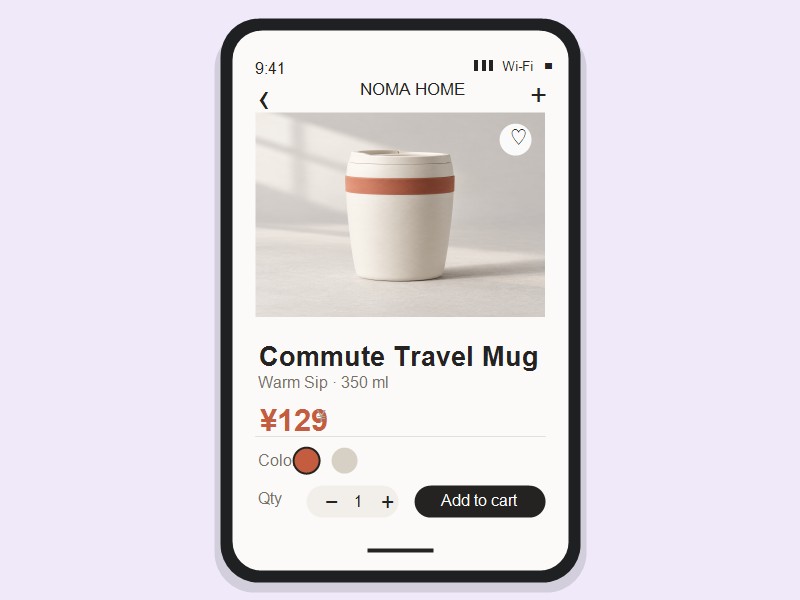
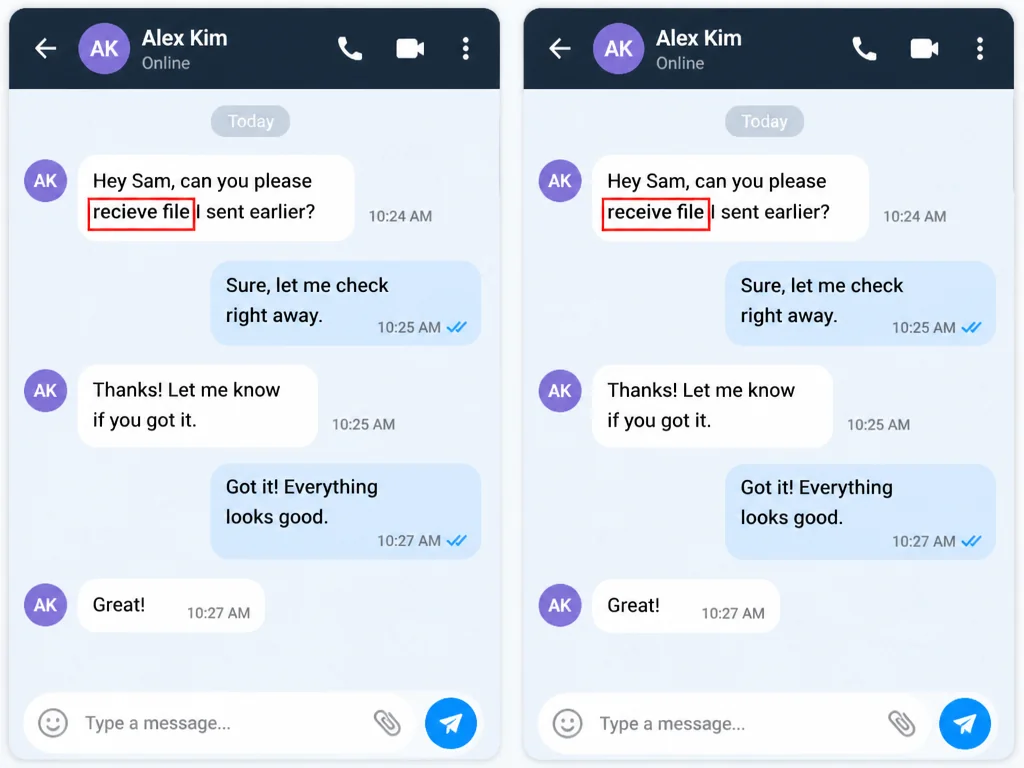
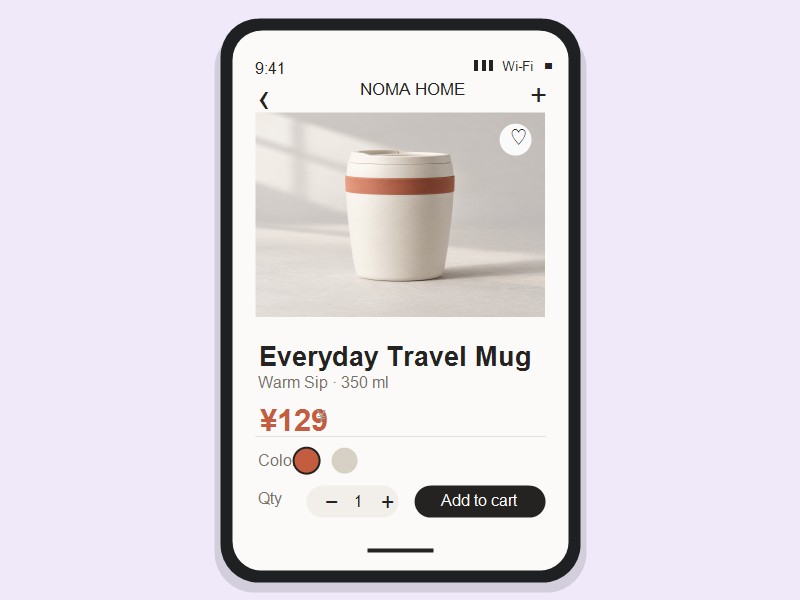 BeforeAfter
A screenshot can be nearly perfect while one label, date, or short phrase is out of date. Pictext's screenshot editor updates that existing text without rebuilding the whole visual or finding the original design file. For broader image text edits beyond a screenshot, use the AI Image Text Editor.
Edit a Screenshot Free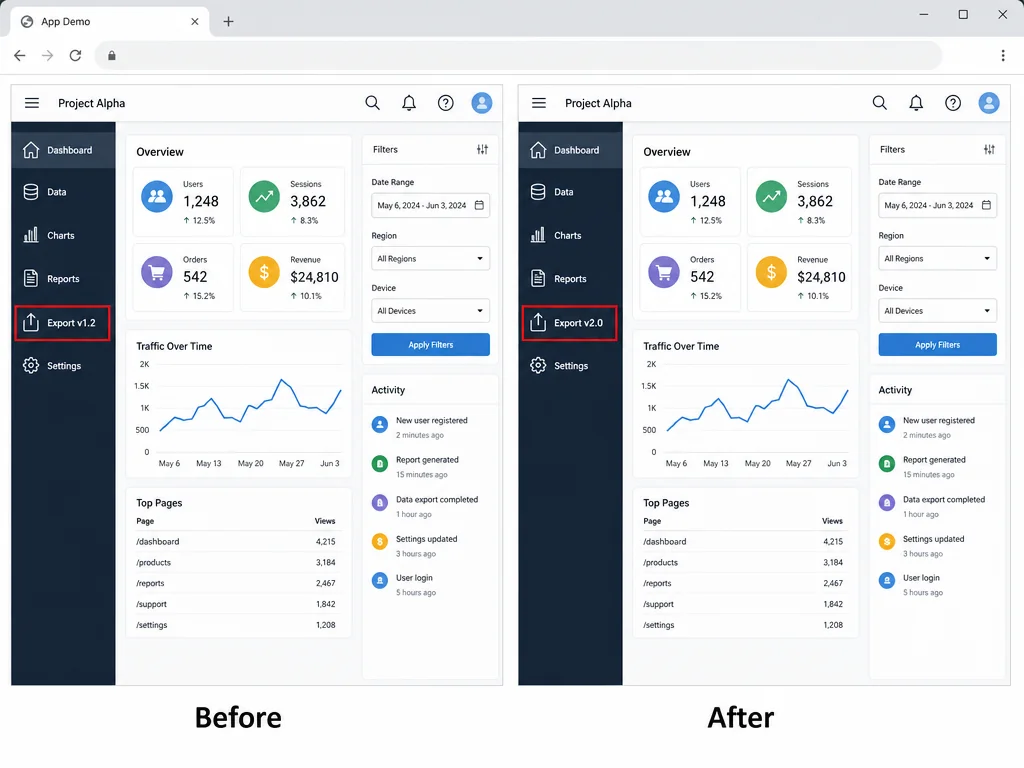
Change a menu label, date, price, or short heading that is already part of the screenshot. The rest of the scene stays in place.
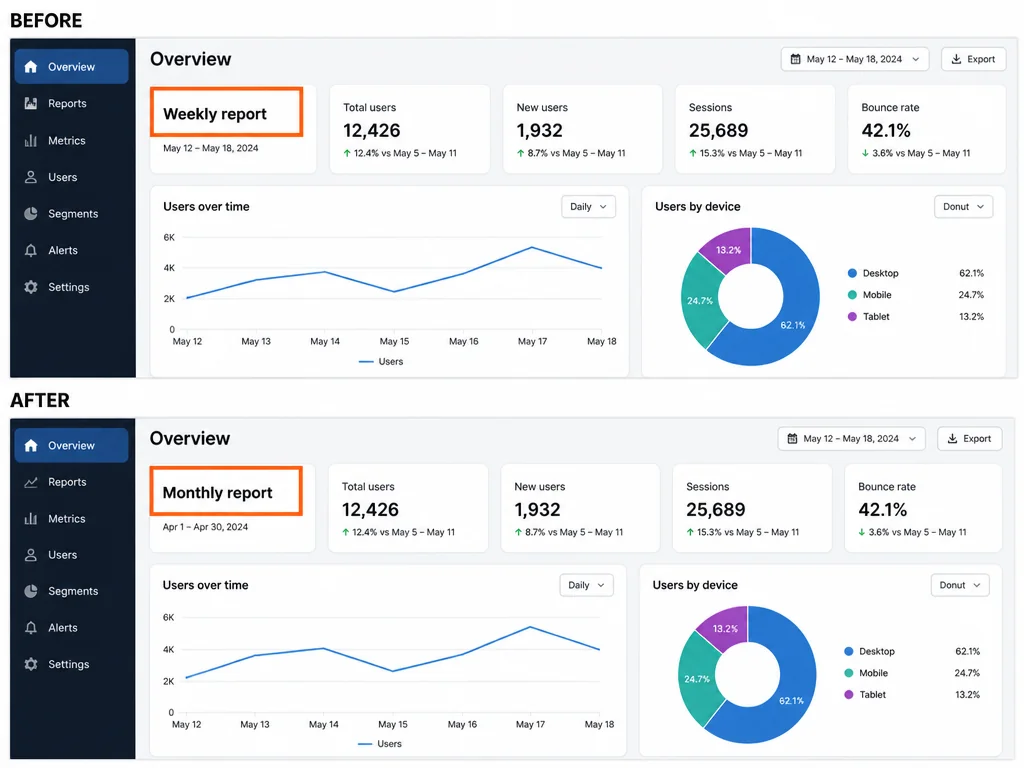
Enter the wording you want to replace and the new text, or let AI identify readable text before you provide the replacement.
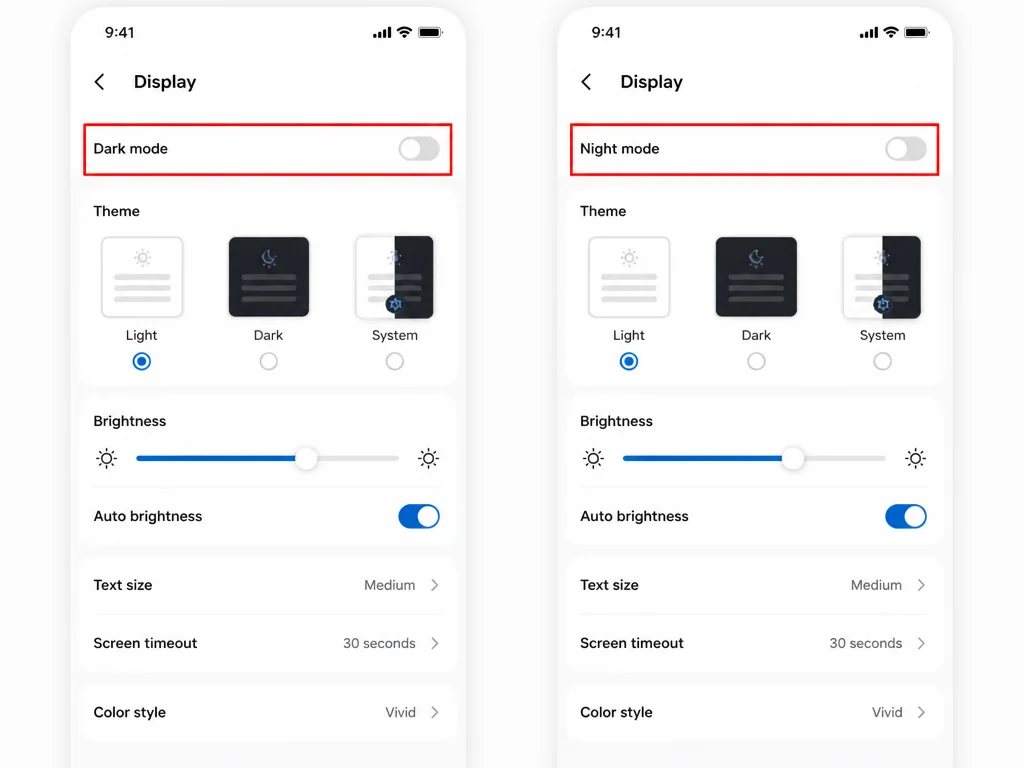
Focused screenshot editing works best for a small text change. Results can vary with the background, font, resolution, and amount of text.
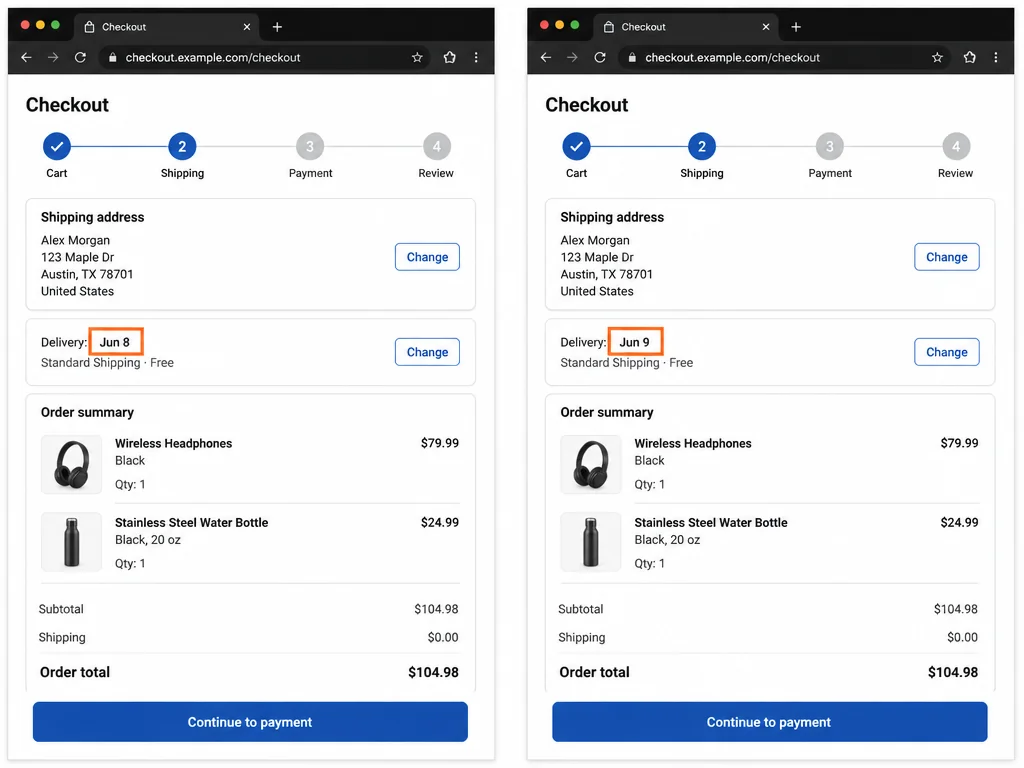
Choose a JPG, PNG, or WebP file, or paste a screenshot from your clipboard.
Enter the label, number, or phrase to replace and provide the new wording. Let AI identify readable text when needed.
Review the result and download the edited file for a tutorial, document, campaign, or post.
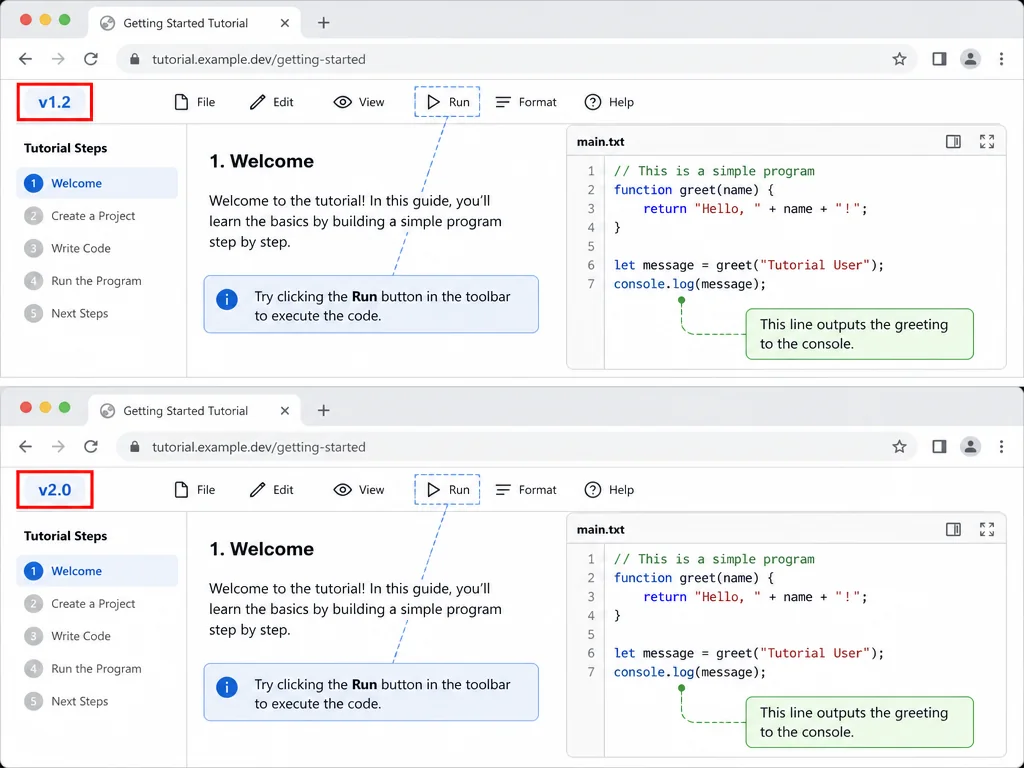
Update an outdated menu name or version number in a published software tutorial screenshot.
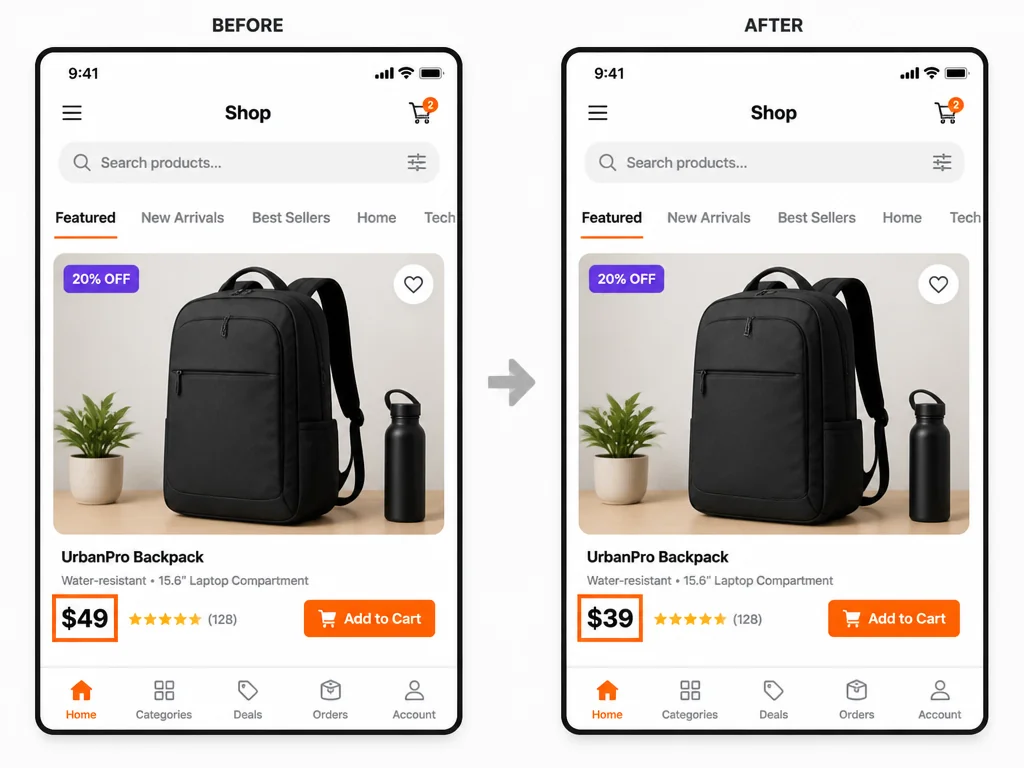
Correct a price in a finished ecommerce screenshot while keeping the product card and layout unchanged.
Correct a typo in an app or chat screenshot while keeping the surrounding conversation visible. For removal-only work, see remove text from an image.
Start with a free daily allowance of credits and try a focused screenshot editing workflow directly in your browser.
Open the online screenshot editor on a laptop, tablet, or phone without installing desktop software.
Change text already inside an image without learning a full design suite for one small correction.
Upload JPG, JPEG, PNG, or WebP files and keep the workflow in one browser tab.
Work from the finished screenshot without the original layered design file.
Clear images generally provide better detail. Background, font, resolution, and text amount affect results.